I Built My Own AI CLI Tool and Put It on npm - Here's the Whole Story
I wanted to use OpenClaw but my laptop couldn't handle it. So I thought - why not build my own? nion-cli: agent mode, 10+ AI providers, Telegram bot.
I wanted to use OpenClaw. It’s an AI coding agent that runs in your terminal — you give it a task, it writes code, runs commands, figures things out on its own. I thought it was really cool.
Then I tried to install it on my laptop and my laptop basically said no.
So I built my own.
This is nion-cli. And this post is a full guide on how to install it, set it up, and actually use it — from scratch.
Installation
You need Node.js 18 or later installed. If you already have it, skip ahead. If not — grab it from nodejs.org.
Once Node is ready, install nion-cli with one command:
npm install -g nion-cliThat’s it. Works on Linux, macOS, Windows, and Termux on Android.
If you’re on Termux specifically:
npm install -g nion-cliOr use the install script if you prefer:
curl -sSL https://raw.githubusercontent.com/asikrshoudo/nion-cli/main/install.sh | bashAfter install, verify it works:
nion --versionIf you see a version number, you’re good.
Setting Up API Keys
nion-cli supports a bunch of AI providers. You need an API key from at least one of them to get started.
Free options (good starting points):
- Groq — fast, free tier, great Llama models
- Google Gemini — free quota, Gemini Flash is solid
- Together AI — free credits on signup
- Cohere — has a free tier
- DeepSeek — very cheap, almost free
- Ollama — completely free, runs locally, no API key needed at all
Paid options:
- OpenAI — ChatGPT models
- Anthropic — Claude models
- Mistral
- Perplexity
- xAI Grok
Once you have a key, run the setup:
nion config setupThis walks you through everything step by step — it’ll ask for each provider’s key one by one. Skip the ones you don’t have yet.
Want to add just one key quickly?
nion config set-key groq YOUR_KEY_HERE
nion config set-key anthropic YOUR_KEY_HERE
nion config set-key google YOUR_KEY_HERE
Check what’s currently configured:
nion config showYour config lives at ~/.nion/config.toml on your machine. It never leaves your device — nothing gets tracked or sent to any server.
Running nion for the First Time
Just type:
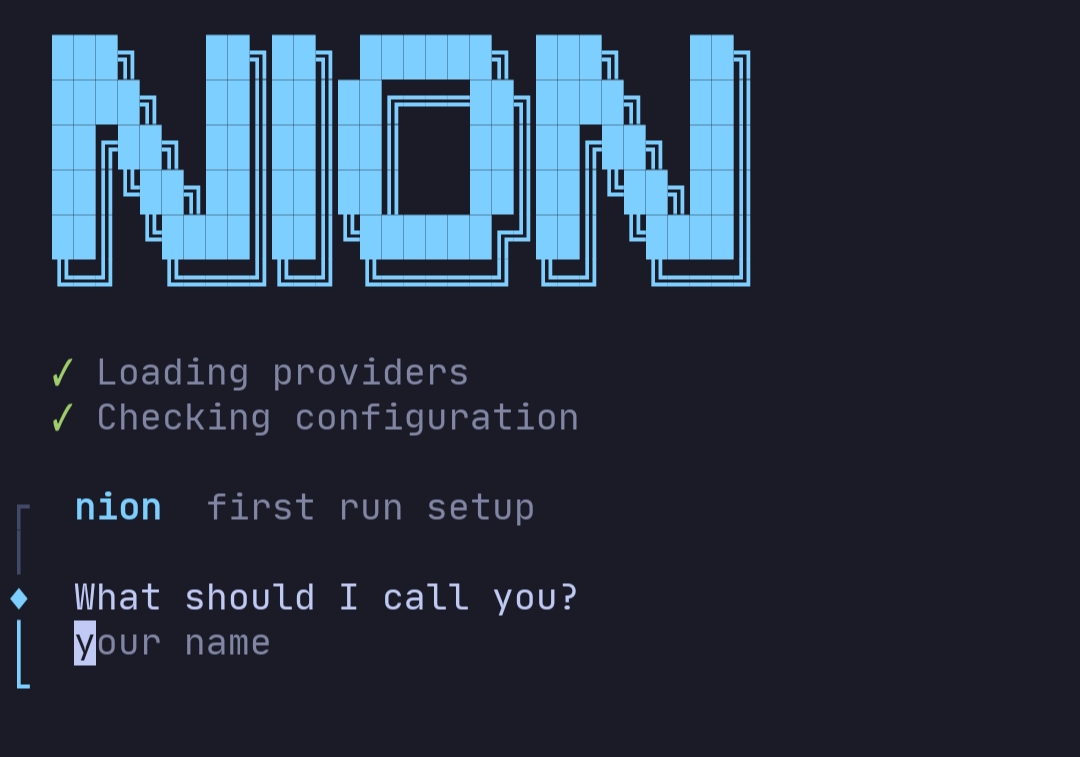
nionIt’ll show your current provider and model, then ask what you want to do — Agent or Chat. From there you just pick and go.
The Commands
nion ask
What it is: A one-shot question. No session, no history, no back and forth. You ask, it answers, done.
When to use it: When you want a quick answer and don’t need a conversation. Like checking something fast while you’re in the middle of working.
How to use it:
nion ask "what does the spread operator do in JavaScript"
nion ask "what's the difference between == and === in JS"
nion ask "how do I center a div in CSS"
With a specific provider:
nion ask "explain async/await" -p groq
nion ask "explain async/await" -p anthropic -m claude-3-5-sonnet-20241022
Think of nion ask as the “just tell me real quick” command.
nion chat
What it is: A proper interactive chat session. It keeps the conversation going — the AI remembers what you said earlier in the session.
When to use it: When you’re exploring a topic, debugging something and going back and forth, or just want to think something through with an AI.
How to use it:
nion chatType your message, press enter, get a reply. Type again. Keep going. Type /exit when you’re done.
With a specific provider or model:
nion chat -p groq -m llama-3.3-70b-versatile
nion chat -p ollama -m gemma3
nion chat -p anthropic
The difference between ask and chat is simple — ask is one question, chat is a conversation.
nion agent
What it is: This is the main feature. You give it a task, and it actually does the work — not just tells you what to do, but does it.
When to use it: When you want code written, bugs fixed, files edited, or commands run — without doing it all yourself.
How it works under the hood:
The agent has access to tools. It can:
- Read your files
- Write and edit code
- Run shell commands (npm, git, anything)
- Search GitHub for examples
- Search Stack Overflow for solutions
- Fetch documentation from any URL
It uses these tools in a loop until the task is complete. It’s not just answering — it’s working.
How to use it:
# Give it a task directly
nion agent "create a simple Express server with two routes"
nion agent "fix the bug in server.ts"
nion agent "add input validation to all API endpoints in src/"
nion agent "why is npm install failing"

# Or start interactive agent mode — give tasks one by one
nion agent
The three approval modes:
By default, the agent shows you each action it’s about to take and waits 2 seconds before running it — giving you time to cancel. But you can change this:
# suggest — shows each step, runs after 2 seconds (default)
nion agent "task" --mode suggest

# manual — you must press y before every single action
nion agent "task" --mode manual

# auto — runs everything immediately, no waiting
nion agent "task" --mode auto
Start with suggest or manual until you’re comfortable with what it does. Use auto when you trust the task completely.
With a specific provider:
nion agent "build a login page" -p groq
nion agent "refactor this file" -p anthropic -m claude-3-5-sonnet-20241022
nion agent "explain and fix the error" -p ollama -m llama3.1
Note: not all providers support agent mode — it requires tool use. OpenAI, Anthropic, Groq, and DeepSeek all work. If your provider doesn’t support it, nion will tell you.
nion models
What it is: Lists all available providers and the models under each one.
When to use it: When you want to know what models are available, or you need to find the exact model name to pass with -m.
nion modelsJust run it and scroll through the list.
nion config
Already covered above, but quick summary:
nion config setup              # full guided setup
nion config set-key groq KEY   # set one key
nion config show               # see current config
nion telegram
What it is: Starts a Telegram bot that lets you control nion from your phone.
When to use it: When you’re running nion on a server or another machine and want to send it tasks remotely — without SSH-ing in every time.
Setup:
- Open Telegram and message @BotFather
- Create a new bot with
/newbotand copy the token - Add it to nion:
nion config set-key telegram YOUR_BOT_TOKEN- Optionally restrict it to your Telegram username only (recommended):
nion config set-key telegram_allowed yourusername- Start the bot:
nion telegramNow open your bot on Telegram, send it a task, and it’ll run the agent and reply when done. One clean reply at the end — no spam.
Keep it running 24/7 with pm2:
npm install -g pm2
pm2 start "nion telegram" --name nion-bot
pm2 save
pm2 startup
nion update
Checks if a newer version is available.
nion updatenion donate
Shows the Bitcoin address if you want to support the project.
nion donateUsing Ollama (Completely Offline AI)
If you don’t want to use any API key at all, Ollama runs AI models locally on your machine. No internet needed once the model is downloaded.
Install Ollama from ollama.com, then pull a model:
ollama pull qwen2.5-coder     # best for coding tasks
ollama pull llama3.2          # general purpose
ollama pull gemma3            # lightweight and fast
Then use it with nion:
nion chat -p ollama -m qwen2.5-coder
nion agent "fix the bug" -p ollama -m llama3.1
For agent mode specifically, use models that support function calling: llama3.1, llama3.2, qwen2.5-coder, mistral, deepseek-coder-v2. Models like gemma3 work for chat but not for agent mode.
The Story Behind It
I started building this because I wanted OpenClaw but my laptop couldn’t handle it. I thought — if someone else can build something like this, I can too.
The first version was in Rust. I used AI to help write it because I don’t actually know Rust. It worked, but it felt slow and heavy — especially on Termux and low-end machines.
So I scrapped it and rewrote everything in TypeScript with Node.js. That was the right call. Lighter, faster, easier to keep building on.
I’m still a student. This isn’t a perfect tool. There are things I haven’t tested and edge cases I haven’t figured out yet. But it’s real, it works, and it’s out there.
If you want to help make it better — star the repo, open an issue, send a PR. I’d really appreciate it.
Install:
npm install -g nion-cliGitHub: github.com/asikrshoudo/nion-cli
Related posts