Show Your Live Discord Status on Your Website and GitHub Profile with Lanyard
Learn how to display your live Discord status on your website and GitHub profile in real-time using Lanyard API. Complete tutorial with working code examples for Spotify, VS Code, and gaming activities.

You know that feeling when you’re vibing to some fire music on Spotify, or grinding through a coding session in VS Code, and your Discord status automatically updates to show it? Pretty cool, right? But here’s the thing - what if you could show that same live activity on your personal website or GitHub profile?
That’s exactly what I’ve done on shoudo.xyz, and honestly, it’s one of the features I get asked about the most. Visitors can see exactly what I’m up to in real-time - whether I’m listening to music, coding, gaming, or just chilling online.
In this guide, I’ll walk you through the entire process of setting this up using Lanyard. No fluff, no bs - just practical steps and working code that you can actually use.
What is Discord Rich Presence?
Discord Rich Presence is a feature that allows applications to display detailed information about what you’re doing directly in your Discord profile. This includes:
- Games you’re currently playing
- Music you’re listening to on Spotify
- Development tools like VS Code with the Discord Rich Presence extension
- Custom applications that integrate with Discord’s RPC
When these applications are running, your Discord status automatically updates to show this activity to your friends. But what if you want to share this status beyond Discord - on your personal website or GitHub profile?
Live Examples from My Site
Before we dive into the technical setup, let me show you exactly what’s possible. I’ve implemented Discord status integration across different platforms - my website and GitHub profile - and each one is designed differently based on how people use that platform.
Here are three real examples from my live sites showing the same Discord status in different layouts:
My Website - Mobile Experience
When you visit shoudo.xyz on mobile, the Discord status appears as a clean card in the sidebar menu. It shows everything - whether I’m online, what I’m listening to on Spotify, complete with album art and song details.
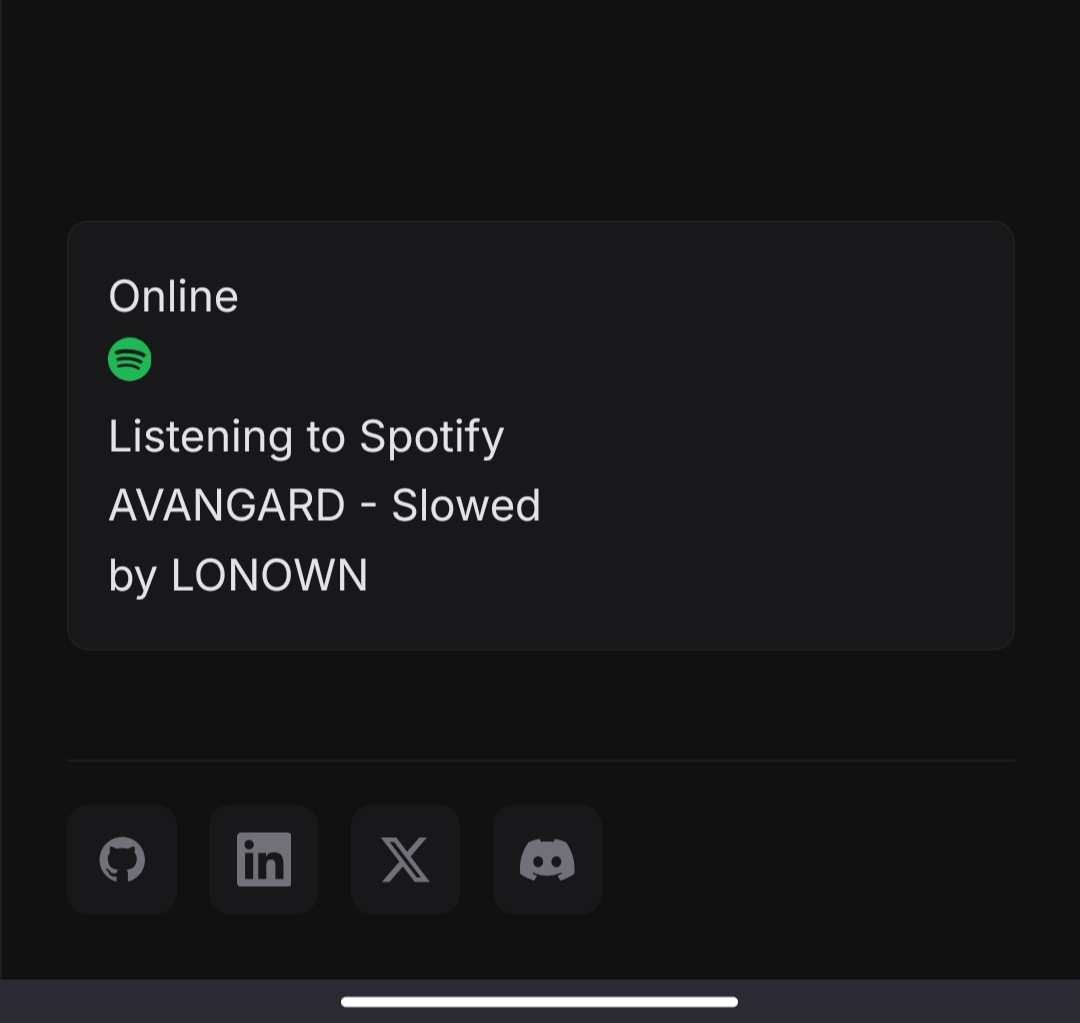
On mobile, the status card sits in my sidebar with full details about what I’m doing - in this case, jamming to “AVANGARD - Slowed” by LONOWN. The social media links (GitHub, LinkedIn, X, Discord) are right below for easy access.
My Website - Desktop Experience
On desktop, I wanted something less intrusive. So the Discord status lives in my navigation bar as a compact indicator. It’s subtle but still shows real-time updates.
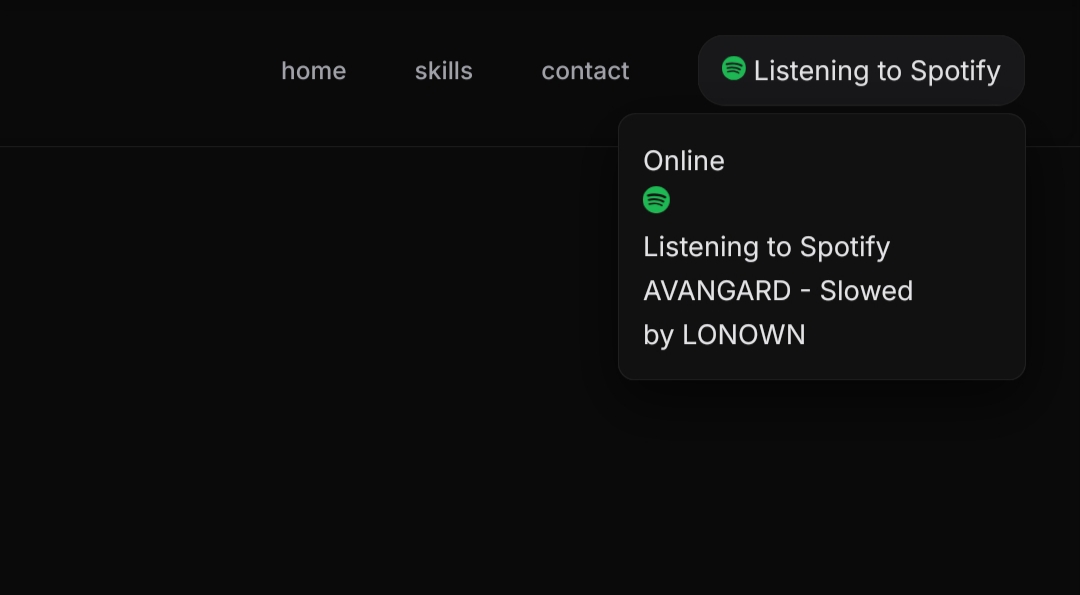
The desktop version keeps things minimal - just a small status indicator in the top navigation that shows I’m listening to Spotify. Hovering over it could show more details (which we’ll implement later in this tutorial).
GitHub Profile - The Full Experience
For my GitHub profile, I went all out with a rich activity card. This one shows my profile picture, current activity, and even has a progress bar for Spotify tracks.
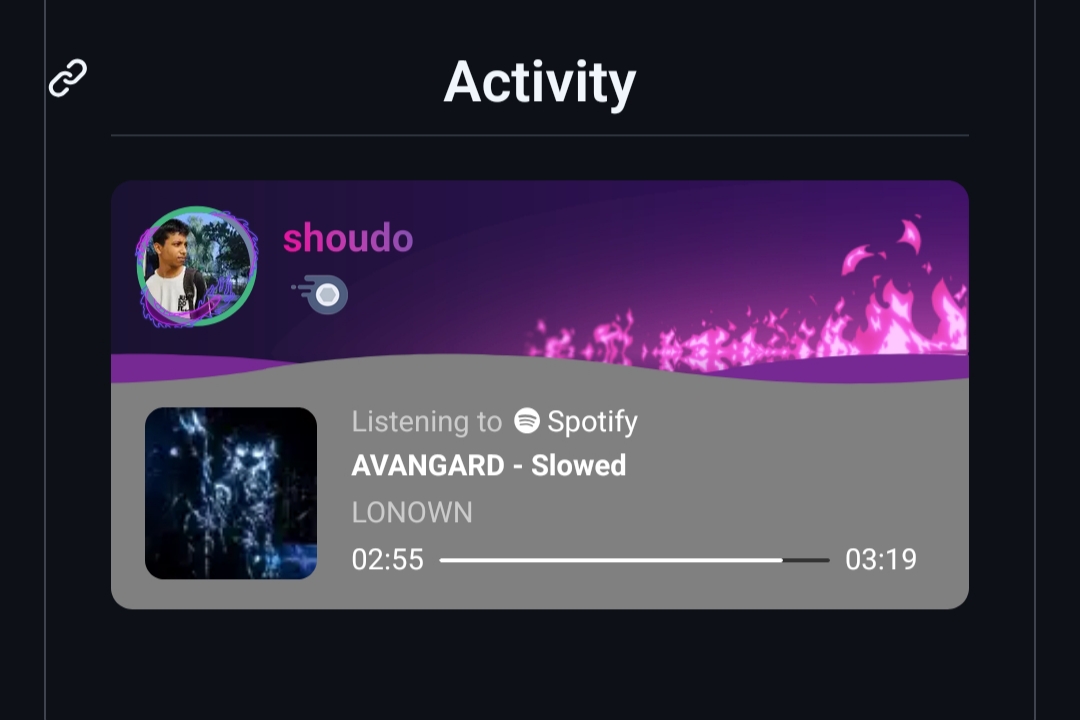
The GitHub implementation is the most detailed - featuring my profile, live Spotify playback with the actual song progress (02:55 / 03:19), and a sleek purple gradient design that matches my brand.
Why Different Implementations Matter
You might be wondering why I didn’t just use the same design everywhere. The answer is simple: context and user experience.
- Mobile sidebar: Users open it intentionally, so they’re ready to see more information. That’s why I show full details here - song name, artist, album art, everything.
- Desktop navbar: Should be quick glance information without cluttering the screen. Users are focused on browsing the site, not checking what music I’m listening to.
- GitHub profile: This is your portfolio showcase. People visiting your GitHub want to know about you, so go all out with a beautiful, detailed card.
Each platform serves a different purpose, so the Discord status integration should adapt accordingly.
Now, let’s learn how Lanyard makes all of this possible.
Enter Lanyard: Your Discord Status, Anywhere
Lanyard is the tool that makes all of this possible. Created by Phineas, it’s an open-source service that takes your Discord presence data and makes it accessible anywhere on the web through a simple REST API.
Think of it like this: Discord knows what you’re doing (playing games, listening to Spotify, coding in VS Code), but that information is locked inside Discord. Lanyard acts as a bridge - it watches your Discord status and creates a public API endpoint that you can use on any website.
And the best part? It’s stupid simple to set up. No complicated configuration, no API keys to manage, no servers to run. Literally just join a Discord server and you’re done.
How Does This Actually Work?
Here’s the simple breakdown:
- You join the Lanyard Discord server - Just one click on an invite link
- Lanyard’s bot starts watching your Discord presence - It sees everything Discord sees about your activity
- You get a unique API endpoint - Something like
https://api.lanyard.rest/v1/users/YOUR_ID - Your website fetches data from that endpoint - Simple JavaScript code calls the API
- Display it however you want - Show it on your website, GitHub profile, wherever
That’s literally it. The entire setup takes about 2 minutes. No complicated configuration, no hosting your own server, no managing API keys. Just join their Discord server and boom - you have a working API endpoint with your live status.
And yes, it’s completely free and open-source. I’ve been using it for months now and haven’t had a single issue with reliability or speed.
Before We Start: Configure Your Discord Settings
⚠️ Important: Lanyard can only see your Discord activity if you have certain settings enabled. This takes 2 minutes to set up, but if you skip it, nothing will work!
Here’s exactly what you need to do:
Required Discord Settings
Open your Discord app and follow these steps:
-
Go to User Settings (click the gear icon next to your username)
-
Navigate to “Activity Privacy” under “Activity Settings”
-
Enable the following settings:
- ✅ “Display current activity as a status message” - This is crucial for showing games, VS Code, and other applications
- ✅ “Display current activity” (also check the one in Privacy & Safety) - Allows your activity to be visible
- ✅ “Share detected activities with others” - Lets Lanyard see what you’re doing
-
Navigate to “Connections” (in the same settings menu)
-
Connect your Spotify account:
- Click “Add” next to Spotify
- Authorize Discord to access your Spotify account
- Make sure the connection is set to “Display on profile”
-
Optional but Recommended:
- In “Privacy & Safety”, ensure your profile is not in invisible mode
- Consider setting “Allow direct messages from server members” if you want full functionality
Important Notes:
- If you’re using invisible mode, Lanyard won’t be able to detect your presence
- For VS Code activity to show, you need to install the Discord Presence extension
- For custom games or applications, they must support Discord Rich Presence integration
Setting Up Lanyard (Takes 2 Minutes, I Promise)
This is genuinely the easiest part of the whole process.
Step 1: Join the Discord Server
Seriously, that’s it for this step:
- Click this link: https://discord.gg/lanyard
- Join the server
- Done
Within a few seconds, Lanyard’s bot will detect your presence and start tracking it. That’s all the “setup” you need.
Step 2: Grab Your Discord User ID
You’ll need this to fetch your status later:
- In Discord, go to Settings → Advanced
- Enable “Developer Mode”
- Close settings, right-click on your username anywhere
- Click “Copy User ID”
You’ll get something like 976820543590383678. Save that somewhere.
Step 3: Test It Out
Let’s make sure everything’s working. Open your browser and go to:
You’ll get something like 976820543590383678. Save that somewhere.
Step 3: Test It Out
Let’s make sure everything’s working. Open your browser and go to:
https://api.lanyard.rest/v1/users/YOUR_DISCORD_USER_IDReplace YOUR_DISCORD_USER_ID with the ID you just copied. If everything’s set up correctly, you should see a big blob of JSON data with all your Discord info!
Here’s what a typical response looks like (this is mine):
{
  "success": true,
  "data": {
    "discord_user": {
      "username": "shoudo",
      "public_flags": 0,
      "id": "94490510688792576",
      "discriminator": "0",
      "avatar": "a_1234567890abcdef1234567890abcdef"
    },
    "discord_status": "online",
    "activities": [
      {
        "type": 2,
        "name": "Spotify",
        "id": "spotify:1",
        "details": "Lost in the Echo",
        "state": "Linkin Park",
        "timestamps": {
          "start": 1673525037771,
          "end": 1673525274000
        }
      }
    ],
    "listening_to_spotify": true,
    "spotify": {
      "track_id": "6PGoSes0D9eUDeeAafB2As",
      "timestamps": {
        "start": 1673525037771,
        "end": 1673525274000
      },
      "song": "Lost in the Echo",
      "artist": "Linkin Park",
      "album_art_url": "https://i.scdn.co/image/ab67616d0000b273...",
      "album": "LIVING THINGS"
    }
  }
}
Building Your Own Discord Status Widget
Alright, now that you’ve seen what’s possible with my implementations, let’s talk about how you can build your own. I’ll show you three different approaches - from simple HTML/JavaScript to modern frameworks like React and Astro.
Choose your approach based on your tech stack:
- HTML + JavaScript: Perfect if you have a simple website or want something quick
- React: If you’re building a modern web app or portfolio with React
- Astro: Great for static sites with islands architecture (like my setup)
Let’s start simple and work our way up.
Approach 1: Pure HTML + JavaScript
This is the easiest way to get started. No build tools, no frameworks - just copy, paste, and customize. This example creates a clean status widget that you can drop into any page:
<!DOCTYPE html>
<html lang="en">
<head>
    <meta charset="UTF-8">
    <meta name="viewport" content="width=device-width, initial-scale=1.0">
    <title>My Discord Status</title>
    <style>
        .discord-status {
            font-family: 'Segoe UI', Tahoma, Geneva, Verdana, sans-serif;
            max-width: 400px;
            padding: 20px;
            background: linear-gradient(135deg, #667eea 0%, #764ba2 100%);
            border-radius: 15px;
            color: white;
            box-shadow: 0 10px 30px rgba(0, 0, 0, 0.3);
        }

        .status-indicator {
            display: inline-block;
            width: 12px;
            height: 12px;
            border-radius: 50%;
            margin-right: 8px;
        }

        .status-online { background-color: #43b581; }
        .status-idle { background-color: #faa61a; }
        .status-dnd { background-color: #f04747; }
        .status-offline { background-color: #747f8d; }

        .activity-card {
            background: rgba(255, 255, 255, 0.1);
            padding: 15px;
            border-radius: 10px;
            margin-top: 15px;
            backdrop-filter: blur(10px);
        }

        .spotify-info {
            display: flex;
            align-items: center;
            gap: 15px;
        }

        .album-art {
            width: 60px;
            height: 60px;
            border-radius: 8px;
            box-shadow: 0 4px 8px rgba(0, 0, 0, 0.3);
        }

        .song-details h4 {
            margin: 0 0 5px 0;
            font-size: 16px;
        }

        .song-details p {
            margin: 0;
            opacity: 0.8;
            font-size: 14px;
        }

        .loading {
            text-align: center;
            opacity: 0.7;
        }
    </style>
</head>
<body>
    <div class="discord-status" id="discord-status">
        <div class="loading">Loading Discord status...</div>
    </div>

    <script>
        const DISCORD_USER_ID = 'YOUR_DISCORD_USER_ID'; // Replace with your Discord User ID
        const statusContainer = document.getElementById('discord-status');

        async function fetchDiscordStatus() {
            try {
                const response = await fetch(`https://api.lanyard.rest/v1/users/${DISCORD_USER_ID}`);
                const data = await response.json();

                if (data.success) {
                    displayStatus(data.data);
                } else {
                    statusContainer.innerHTML = '<p>Unable to load Discord status</p>';
                }
            } catch (error) {
                console.error('Error fetching Discord status:', error);
                statusContainer.innerHTML = '<p>Error loading status</p>';
            }
        }

        function displayStatus(data) {
            const { discord_status, discord_user, spotify, activities } = data;

            // Status indicator color
            const statusClass = `status-${discord_status}`;

            let html = `
                <div>
                    <h3>
                        <span class="status-indicator ${statusClass}"></span>
                        ${discord_user.username}
                    </h3>
                    <p>Status: ${discord_status}</p>
                </div>
            `;

            // Show Spotify if listening
            if (spotify) {
                html += `
                    <div class="activity-card">
                        <p style="margin: 0 0 10px 0; opacity: 0.8;">🎵 Listening to Spotify</p>
                        <div class="spotify-info">
                            <img src="${spotify.album_art_url}" alt="Album Art" class="album-art">
                            <div class="song-details">
                                <h4>${spotify.song}</h4>
                                <p>${spotify.artist}</p>
                                <p style="font-size: 12px; opacity: 0.6;">${spotify.album}</p>
                            </div>
                        </div>
                    </div>
                `;
            }

            // Show other activities (games, VS Code, etc.)
            const otherActivities = activities.filter(a => a.type !== 2); // Filter out Spotify (type 2)
            otherActivities.forEach(activity => {
                let activityIcon = '🎮';
                if (activity.name.includes('Visual Studio Code')) {
                    activityIcon = '💻';
                } else if (activity.name.includes('Code')) {
                    activityIcon = '⌨️';
                }

                html += `
                    <div class="activity-card">
                        <p style="margin: 0 0 5px 0;">${activityIcon} ${activity.name}</p>
                        ${activity.details ? `<p style="margin: 0; font-size: 14px;">${activity.details}</p>` : ''}
                        ${activity.state ? `<p style="margin: 5px 0 0 0; font-size: 12px; opacity: 0.7;">${activity.state}</p>` : ''}
                    </div>
                `;
            });

            statusContainer.innerHTML = html;
        }

        // Fetch status on load
        fetchDiscordStatus();

        // Refresh status every 30 seconds
        setInterval(fetchDiscordStatus, 30000);
    </script>
</body>
</html>
Key Features of This Implementation:
- Displays your username and online status with a colored indicator
- Shows Spotify listening activity with album art
- Displays other activities like gaming or VS Code
- Auto-refreshes every 30 seconds
- Beautiful gradient design with glassmorphism effect
React Implementation
If you’re using React (like I am on my main site), here’s a more modern implementation using hooks:
import React, { useState, useEffect } from 'react';

const DiscordStatus = () => {
    const [status, setStatus] = useState(null);
    const [loading, setLoading] = useState(true);
    const DISCORD_USER_ID = 'YOUR_DISCORD_USER_ID';

    useEffect(() => {
        const fetchStatus = async () => {
            try {
                const response = await fetch(
                    `https://api.lanyard.rest/v1/users/${DISCORD_USER_ID}`
                );
                const data = await response.json();

                if (data.success) {
                    setStatus(data.data);
                }
            } catch (error) {
                console.error('Error fetching Discord status:', error);
            } finally {
                setLoading(false);
            }
        };

        fetchStatus();
        const interval = setInterval(fetchStatus, 30000);

        return () => clearInterval(interval);
    }, []);

    if (loading) return <div>Loading...</div>;
    if (!status) return null;

    const statusColors = {
        online: '#43b581',
        idle: '#faa61a',
        dnd: '#f04747',
        offline: '#747f8d'
    };

    return (
        <div className="discord-status-card">
            <div className="status-header">
                <div
                    className="status-indicator"
                    style={{ backgroundColor: statusColors[status.discord_status] }}
                />
                <h3>{status.discord_user.username}</h3>
            </div>

            {status.spotify && (
                <div className="spotify-activity">
                    <img
                        src={status.spotify.album_art_url}
                        alt="Album Art"
                        className="album-art"
                    />
                    <div className="song-info">
                        <p className="song-name">{status.spotify.song}</p>
                        <p className="artist-name">{status.spotify.artist}</p>
                    </div>
                </div>
            )}

            {status.activities
                .filter(activity => activity.type !== 2)
                .map((activity, index) => (
                    <div key={index} className="activity-item">
                        <p className="activity-name">{activity.name}</p>
                        {activity.details && (
                            <p className="activity-details">{activity.details}</p>
                        )}
                    </div>
                ))}
        </div>
    );
};

export default DiscordStatus;
Approach 3: Astro with Responsive Design (My Setup)
This is how I actually built it for shoudo.xyz. The key feature here is responsive design - it shows a compact status in the navbar on desktop, but a full detailed card on mobile. Here’s the complete implementation:
---
// DiscordStatus.astro
const DISCORD_ID = "YOUR_DISCORD_USER_ID";
---

<div class="discord-container">
    <!-- Desktop: Compact navbar status -->
    <div class="desktop-status" id="desktopStatus">
        <div class="status-loading">Loading...</div>
    </div>

    <!-- Mobile: Detailed sidebar card -->
    <div class="mobile-status" id="mobileStatus">
        <div class="status-loading">Loading status...</div>
    </div>
</div>

<style>
    .discord-container {
        width: 100%;
    }

    /* Desktop: Compact inline status */
    .desktop-status {
        display: inline-flex;
        align-items: center;
        gap: 8px;
        padding: 8px 16px;
        background: rgba(17, 17, 17, 0.6);
        border: 1px solid #1f1f1f;
        border-radius: 20px;
        font-size: 14px;
        cursor: pointer;
        transition: all 0.2s;
    }

    .desktop-status:hover {
        background: rgba(17, 17, 17, 0.9);
        border-color: #8b5cf6;
    }

    .status-dot {
        width: 8px;
        height: 8px;
        border-radius: 50%;
        flex-shrink: 0;
    }

    .status-dot.online { background: #3ba55d; }
    .status-dot.idle { background: #faa81a; }
    .status-dot.dnd { background: #ed4245; }
    .status-dot.offline { background: #747f8d; }

    /* Mobile: Full detailed card */
    .mobile-status {
        width: 100%;
        background: #111111;
        border: 1px solid #1f1f1f;
        border-radius: 12px;
        padding: 20px;
        margin-top: 16px;
    }

    .presence-header {
        display: flex;
        align-items: center;
        gap: 12px;
        margin-bottom: 16px;
        padding-bottom: 16px;
        border-bottom: 1px solid #1f1f1f;
    }

    .presence-header h3 {
        font-size: 16px;
        margin: 0;
        font-weight: 600;
    }

    .activity-section {
        margin-top: 12px;
    }

    .activity-label {
        font-size: 11px;
        text-transform: uppercase;
        letter-spacing: 0.5px;
        color: #71717a;
        margin-bottom: 8px;
        font-weight: 600;
    }

    .spotify-player {
        background: linear-gradient(135deg, rgba(30, 215, 96, 0.1) 0%, rgba(29, 185, 84, 0.05) 100%);
        border: 1px solid rgba(30, 215, 96, 0.2);
        border-radius: 10px;
        padding: 14px;
        display: flex;
        gap: 12px;
    }

    .spotify-player img {
        width: 56px;
        height: 56px;
        border-radius: 6px;
    }

    .spotify-details h4 {
        font-size: 14px;
        margin: 0 0 4px 0;
        font-weight: 600;
    }

    .spotify-details p {
        font-size: 12px;
        margin: 0;
        color: #a1a1aa;
    }

    .status-loading {
        color: #71717a;
        font-size: 13px;
    }

    /* Responsive */
    @media (max-width: 768px) {
        .desktop-status {
            display: none;
        }
    }

    @media (min-width: 769px) {
        .mobile-status {
            display: none;
        }
    }
</style>

<script define:vars={{ DISCORD_ID }}>
    let presenceData = null;

    async function fetchPresence() {
        try {
            const res = await fetch(`https://api.lanyard.rest/v1/users/${DISCORD_ID}`);
            const json = await res.json();

            if (json.success) {
                presenceData = json.data;
                updateUI();
            }
        } catch (err) {
            console.error('Failed to fetch Discord presence:', err);
        }
    }

    function updateUI() {
        if (!presenceData) return;

        updateDesktopView();
        updateMobileView();
    }

    function updateDesktopView() {
        const desktop = document.getElementById('desktopStatus');
        if (!desktop) return;

        const { discord_status, spotify, activities } = presenceData;

        let content = `<div class="status-dot ${discord_status}"></div>`;

        if (spotify) {
            content += `<span>🎵 Listening to Spotify</span>`;
        } else {
            const activity = activities.find(a => a.type !== 4);
            if (activity) {
                const isVSCode = activity.name === 'Visual Studio Code';
                content += `<span>${isVSCode ? '💻 Coding' : '🎮 ' + activity.name}</span>`;
            } else {
                const labels = {
                    online: 'Online',
                    idle: 'Idle',
                    dnd: 'Busy',
                    offline: 'Offline'
                };
                content += `<span>${labels[discord_status]}</span>`;
            }
        }

        desktop.innerHTML = content;
    }

    function updateMobileView() {
        const mobile = document.getElementById('mobileStatus');
        if (!mobile) return;

        const { discord_user, discord_status, spotify, activities } = presenceData;

        const statusLabels = {
            online: 'Online',
            idle: 'Idle',
            dnd: 'Do Not Disturb',
            offline: 'Offline'
        };

        let html = `
            <div class="presence-header">
                <div class="status-dot ${discord_status}"></div>
                <div>
                    <h3>${discord_user.username}</h3>
                    <p style="font-size: 13px; color: #a1a1aa; margin: 0;">${statusLabels[discord_status]}</p>
                </div>
            </div>
        `;

        if (spotify) {
            html += `
                <div class="activity-section">
                    <div class="activity-label">🎵 Listening to Spotify</div>
                    <div class="spotify-player">
                        <img src="${spotify.album_art_url}" alt="Album">
                        <div class="spotify-details">
                            <h4>${spotify.song}</h4>
                            <p>${spotify.artist}</p>
                            <p style="font-size: 11px; opacity: 0.7; margin-top: 2px;">${spotify.album}</p>
                        </div>
                    </div>
                </div>
            `;
        }

        const otherActivities = activities.filter(a => a.type !== 2 && a.type !== 4);
        otherActivities.forEach(activity => {
            const isVSCode = activity.name === 'Visual Studio Code';
            html += `
                <div class="activity-section">
                    <div class="activity-label">${isVSCode ? '💻 Coding' : '🎮 Playing'}</div>
                    <div style="font-size: 14px; font-weight: 500;">${activity.name}</div>
                    ${activity.details ? `<div style="font-size: 12px; color: #a1a1aa; margin-top: 4px;">${activity.details}</div>` : ''}
                </div>
            `;
        });

        mobile.innerHTML = html;
    }

    // Initial fetch
    fetchPresence();

    // Update every 30 seconds
    setInterval(fetchPresence, 30000);
</script>
Why This Approach Works Well:
- Desktop: Shows a compact, inline status in your navigation bar
- Mobile: Displays a detailed card with full information in your sidebar menu
- Responsive: Automatically switches between views based on screen size
- Lightweight: Uses vanilla JavaScript with no extra dependencies
- Real-time: Auto-updates every 30 seconds to stay current
This is similar to how I’ve implemented it on my own site at shoudo.xyz - you can check it out on both desktop and mobile to see the different views in action!
WebSocket Implementation for Real-Time Updates
For truly real-time updates without polling, Lanyard provides WebSocket support:
const DISCORD_USER_ID = 'YOUR_DISCORD_USER_ID';
const ws = new WebSocket('wss://api.lanyard.rest/socket');

ws.addEventListener('open', () => {
    console.log('Connected to Lanyard');

    // Subscribe to your user ID
    ws.send(JSON.stringify({
        op: 2,
        d: {
            subscribe_to_id: DISCORD_USER_ID
        }
    }));
});

ws.addEventListener('message', (event) => {
    const data = JSON.parse(event.data);

    switch (data.op) {
        case 1: // Hello
            console.log('Received hello from Lanyard');
            // Set up heartbeat
            setInterval(() => {
                ws.send(JSON.stringify({ op: 3 }));
            }, data.d.heartbeat_interval);
            break;

        case 0: // Event
            if (data.t === 'INIT_STATE' || data.t === 'PRESENCE_UPDATE') {
                console.log('Presence update:', data.d);
                updateDisplay(data.d);
            }
            break;
    }
});

function updateDisplay(presence) {
    // Update your UI with the presence data
    const statusElement = document.getElementById('discord-status');

    // Your display logic here
    console.log('Current status:', presence.discord_status);
    console.log('Activities:', presence.activities);
    console.log('Spotify:', presence.spotify);
}
WebSocket Advantages:
- Instant updates (no 30-second delay)
- More efficient (no repeated API calls)
- Lower latency for status changes
Adding Discord Status to Your GitHub Profile
Want to show your live status on your GitHub profile? Here’s how to do it! (See my GitHub implementation in the Real-World Examples section above)
Method 1: Using a Dynamic SVG Badge
This method uses a serverless function to generate an SVG that auto-updates:
- Create a Vercel/Netlify function (or use an existing Lanyard badge service):
// api/discord-status.js (for Vercel)
export default async function handler(req, res) {
    const DISCORD_USER_ID = 'YOUR_DISCORD_USER_ID';

    try {
        const response = await fetch(
            `https://api.lanyard.rest/v1/users/${DISCORD_USER_ID}`
        );
        const data = await response.json();

        if (!data.success) {
            throw new Error('Failed to fetch status');
        }

        const status = data.data.discord_status;
        const spotify = data.data.spotify;

        let statusColor = '#747f8d';
        let statusText = 'Offline';

        if (status === 'online') {
            statusColor = '#43b581';
            statusText = 'Online';
        } else if (status === 'idle') {
            statusColor = '#faa61a';
            statusText = 'Idle';
        } else if (status === 'dnd') {
            statusColor = '#f04747';
            statusText = 'Do Not Disturb';
        }

        let activityText = '';
        if (spotify) {
            activityText = `Listening to ${spotify.song} by ${spotify.artist}`;
        }

        const svg = `
            <svg width="400" height="100" xmlns="http://www.w3.org/2000/svg">
                <rect width="400" height="100" fill="#2c2f33" rx="5"/>
                <circle cx="30" cy="30" r="10" fill="${statusColor}"/>
                <text x="50" y="35" fill="white" font-family="Arial" font-size="16">
                    ${statusText}
                </text>
                ${activityText ? `
                    <text x="20" y="65" fill="#b9bbbe" font-family="Arial" font-size="12">
                        ${activityText}
                    </text>
                ` : ''}
            </svg>
        `;

        res.setHeader('Content-Type', 'image/svg+xml');
        res.setHeader('Cache-Control', 'public, max-age=60');
        res.send(svg);
    } catch (error) {
        res.status(500).send('Error fetching status');
    }
}- Add to your GitHub README:
## 🎮 Current Status
Method 2: Using Pre-built Lanyard Badge Services
Several developers have created ready-to-use badge services. Here’s a simple example using Lanyard’s direct badge:
[](https://discord.com/users/YOUR_DISCORD_USER_ID)This will display a badge showing your current status that updates automatically!
Advanced Customization Examples
Creating a Custom Activity Card
Here’s a more advanced example that creates a beautiful activity card:
<!DOCTYPE html>
<html lang="en">
<head>
    <meta charset="UTF-8">
    <meta name="viewport" content="width=device-width, initial-scale=1.0">
    <title>Advanced Discord Status</title>
    <style>
        @import url('https://fonts.googleapis.com/css2?family=Inter:wght@400;500;600;700&display=swap');

        * {
            margin: 0;
            padding: 0;
            box-sizing: border-box;
        }

        body {
            font-family: 'Inter', sans-serif;
            background: #0d1117;
            color: #c9d1d9;
            padding: 40px;
            display: flex;
            justify-content: center;
            align-items: center;
            min-height: 100vh;
        }

        .status-card {
            background: linear-gradient(135deg, #1e2530 0%, #161b22 100%);
            border: 1px solid #30363d;
            border-radius: 16px;
            padding: 30px;
            width: 100%;
            max-width: 450px;
            box-shadow: 0 20px 60px rgba(0, 0, 0, 0.5);
            transition: transform 0.3s ease;
        }

        .status-card:hover {
            transform: translateY(-5px);
        }

        .user-info {
            display: flex;
            align-items: center;
            gap: 15px;
            margin-bottom: 25px;
            padding-bottom: 20px;
            border-bottom: 1px solid #30363d;
        }

        .avatar {
            width: 70px;
            height: 70px;
            border-radius: 50%;
            position: relative;
        }

        .avatar img {
            width: 100%;
            height: 100%;
            border-radius: 50%;
            border: 3px solid #30363d;
        }

        .status-badge {
            position: absolute;
            bottom: 0;
            right: 0;
            width: 20px;
            height: 20px;
            border-radius: 50%;
            border: 3px solid #161b22;
        }

        .user-details h2 {
            font-size: 24px;
            font-weight: 700;
            margin-bottom: 5px;
        }

        .user-details p {
            font-size: 14px;
            color: #8b949e;
        }

        .activity-section {
            margin-top: 20px;
        }

        .activity-header {
            display: flex;
            align-items: center;
            gap: 10px;
            margin-bottom: 15px;
            font-size: 14px;
            font-weight: 600;
            color: #8b949e;
            text-transform: uppercase;
            letter-spacing: 0.5px;
        }

        .spotify-card {
            background: linear-gradient(135deg, #1DB954 0%, #1ed760 100%);
            padding: 20px;
            border-radius: 12px;
            display: flex;
            gap: 15px;
            align-items: center;
            margin-bottom: 15px;
            box-shadow: 0 10px 30px rgba(29, 185, 84, 0.2);
        }

        .spotify-card img {
            width: 80px;
            height: 80px;
            border-radius: 8px;
            box-shadow: 0 4px 12px rgba(0, 0, 0, 0.3);
        }

        .spotify-info h3 {
            font-size: 18px;
            font-weight: 600;
            margin-bottom: 5px;
            color: white;
        }

        .spotify-info p {
            font-size: 14px;
            color: rgba(255, 255, 255, 0.8);
        }

        .progress-bar {
            width: 100%;
            height: 4px;
            background: rgba(255, 255, 255, 0.2);
            border-radius: 2px;
            margin-top: 10px;
            overflow: hidden;
        }

        .progress-fill {
            height: 100%;
            background: white;
            border-radius: 2px;
            transition: width 1s linear;
        }

        .game-card {
            background: rgba(88, 101, 242, 0.1);
            border: 1px solid rgba(88, 101, 242, 0.3);
            padding: 15px;
            border-radius: 12px;
            margin-bottom: 10px;
        }

        .game-card h3 {
            font-size: 16px;
            font-weight: 600;
            margin-bottom: 8px;
            color: #58a6ff;
        }

        .game-card p {
            font-size: 14px;
            color: #8b949e;
            line-height: 1.5;
        }

        .vscode-card {
            background: rgba(0, 122, 204, 0.1);
            border: 1px solid rgba(0, 122, 204, 0.3);
            padding: 15px;
            border-radius: 12px;
        }

        .vscode-card h3 {
            font-size: 16px;
            font-weight: 600;
            margin-bottom: 8px;
            color: #007acc;
        }

        .vscode-card p {
            font-size: 14px;
            color: #8b949e;
        }

        .timestamp {
            font-size: 12px;
            color: #6e7681;
            margin-top: 5px;
        }
    </style>
</head>
<body>
    <div class="status-card" id="status-card">
        <div style="text-align: center; padding: 40px;">
            <p style="color: #8b949e;">Loading status...</p>
        </div>
    </div>

    <script>
        const DISCORD_USER_ID = 'YOUR_DISCORD_USER_ID';
        const statusCard = document.getElementById('status-card');

        async function fetchAndDisplayStatus() {
            try {
                const response = await fetch(`https://api.lanyard.rest/v1/users/${DISCORD_USER_ID}`);
                const result = await response.json();

                if (!result.success) throw new Error('Failed to fetch status');

                const data = result.data;
                displayStatus(data);
            } catch (error) {
                console.error('Error:', error);
                statusCard.innerHTML = '<p style="text-align: center; color: #8b949e;">Unable to load status</p>';
            }
        }

        function displayStatus(data) {
            const { discord_user, discord_status, spotify, activities } = data;

            const statusColors = {
                online: '#43b581',
                idle: '#faa61a',
                dnd: '#f04747',
                offline: '#747f8d'
            };

            const statusLabels = {
                online: 'Online',
                idle: 'Idle',
                dnd: 'Do Not Disturb',
                offline: 'Offline'
            };

            let html = `
                <div class="user-info">
                    <div class="avatar">
                        <img src="https://cdn.discordapp.com/avatars/${discord_user.id}/${discord_user.avatar}.png?size=256"
                             alt="${discord_user.username}">
                        <div class="status-badge" style="background: ${statusColors[discord_status]}"></div>
                    </div>
                    <div class="user-details">
                        <h2>${discord_user.username}</h2>
                        <p>${statusLabels[discord_status]}</p>
                    </div>
                </div>
            `;

            if (spotify) {
                const progress = ((Date.now() - spotify.timestamps.start) /
                                 (spotify.timestamps.end - spotify.timestamps.start)) * 100;

                html += `
                    <div class="activity-section">
                        <div class="activity-header">
                            <span>🎵</span>
                            <span>Listening to Spotify</span>
                        </div>
                        <div class="spotify-card">
                            <img src="${spotify.album_art_url}" alt="Album Art">
                            <div class="spotify-info">
                                <h3>${spotify.song}</h3>
                                <p>${spotify.artist}</p>
                                <p style="font-size: 12px; margin-top: 5px; opacity: 0.7;">${spotify.album}</p>
                                <div class="progress-bar">
                                    <div class="progress-fill" style="width: ${Math.min(progress, 100)}%"></div>
                                </div>
                            </div>
                        </div>
                    </div>
                `;
            }

            const games = activities.filter(a => a.type === 0);
            const vscode = activities.find(a => a.name === 'Visual Studio Code');
            const other = activities.filter(a => a.type !== 0 && a.type !== 2 && a.name !== 'Visual Studio Code');

            if (games.length > 0) {
                games.forEach(game => {
                    const elapsed = game.timestamps?.start ?
                        Math.floor((Date.now() - game.timestamps.start) / 60000) : null;

                    html += `
                        <div class="activity-section">
                            <div class="activity-header">
                                <span>🎮</span>
                                <span>Playing a game</span>
                            </div>
                            <div class="game-card">
                                <h3>${game.name}</h3>
                                ${game.details ? `<p>${game.details}</p>` : ''}
                                ${game.state ? `<p>${game.state}</p>` : ''}
                                ${elapsed ? `<p class="timestamp">Playing for ${elapsed} minutes</p>` : ''}
                            </div>
                        </div>
                    `;
                });
            }

            if (vscode) {
                html += `
                    <div class="activity-section">
                        <div class="activity-header">
                            <span>💻</span>
                            <span>Coding in VS Code</span>
                        </div>
                        <div class="vscode-card">
                            <h3>${vscode.details || 'Visual Studio Code'}</h3>
                            ${vscode.state ? `<p>📁 ${vscode.state}</p>` : ''}
                            ${vscode.assets?.large_text ? `<p>🔧 ${vscode.assets.large_text}</p>` : ''}
                        </div>
                    </div>
                `;
            }

            statusCard.innerHTML = html;
        }

        // Initial fetch
        fetchAndDisplayStatus();

        // Refresh every 15 seconds
        setInterval(fetchAndDisplayStatus, 15000);
    </script>
</body>
</html>
This advanced implementation features:
- Beautiful GitHub-inspired dark theme design
- Avatar with status indicator
- Animated Spotify progress bar
- Distinct cards for different activity types
- Time tracking for activities
- Smooth hover effects and transitions
Understanding the Lanyard API Response
Let’s break down the key fields in the Lanyard API response:
{
  "success": true,
  "data": {
    // User information
    "discord_user": {
      "id": "94490510688792576",        // Your Discord User ID
      "username": "shoudo",               // Your Discord username
      "avatar": "a_1234567890abcdef",    // Avatar hash (a_ prefix means animated)
      "discriminator": "0",               // Discord tag (deprecated, now always 0)
      "public_flags": 0                   // Public flags on your account
    },

    // Current status
    "discord_status": "online",           // online, idle, dnd, or offline

    // Spotify data (if listening)
    "listening_to_spotify": true,
    "spotify": {
      "track_id": "6PGoSes0D9eUDeeAafB2As",
      "song": "Lost in the Echo",         // Song title
      "artist": "Linkin Park",             // Artist name
      "album": "LIVING THINGS",            // Album name
      "album_art_url": "https://...",     // Album artwork URL
      "timestamps": {
        "start": 1673525037771,           // When the song started (Unix timestamp)
        "end": 1673525274000              // When the song will end (Unix timestamp)
      }
    },

    // All activities
    "activities": [
      {
        "type": 0,                        // 0=Game, 2=Spotify, 3=Watching
        "name": "Valorant",               // Activity name
        "id": "custom",
        "details": "In Game",             // Activity details
        "state": "Competitive",           // Activity state
        "timestamps": {
          "start": 1673525000000          // When activity started
        },
        "assets": {
          "large_image": "...",           // Large icon
          "large_text": "...",            // Large icon tooltip
          "small_image": "...",           // Small icon
          "small_text": "..."             // Small icon tooltip
        }
      }
    ]
  }
}
Activity Types
- Type 0: Playing (games and most applications)
- Type 2: Streaming/Listening (Spotify)
- Type 3: Watching (YouTube, Twitch, etc.)
Adding Discord Status to Your GitHub Profile
Want to show your live status on your GitHub profile like I do? Here’s how to set it up!
Here are some real-world implementations you can check out for inspiration:
- My Portfolio: shoudo.xyz - See the responsive implementation in action (try it on both mobile and desktop!)
- My Blog: blogs.shoudo.xyz - Tech tutorials and development insights (you’re here right now!)
- My GitHub: github.com/asikrshoudo - Check out the activity card implementation on my profile
Troubleshooting Common Issues
Issue 1: Status Not Updating
Problem: Your status shows as offline even though you’re online.
Solutions:
- Verify you’ve joined the Lanyard Discord server: https://discord.gg/lanyard
- Check your Discord privacy settings (see Prerequisites section)
- Make sure you’re not in invisible mode
- Wait a few minutes after joining the Lanyard server
Issue 2: Spotify Not Showing
Problem: Your Spotify activity isn’t appearing in the API response.
Solutions:
- Connect your Spotify account in Discord Settings → Connections
- Enable “Display on profile” for your Spotify connection
- Make sure you’re actively playing music (paused tracks don’t show)
- Restart your Spotify app and Discord
Issue 3: VS Code Activity Not Showing
Problem: VS Code activity isn’t being displayed.
Solutions:
- Install the Discord Presence extension for VS Code
- Enable the extension in VS Code settings
- Make sure Discord is running while you code
- Check that “Display current activity” is enabled in Discord
Issue 4: CORS Errors in Browser
Problem: Getting CORS errors when fetching from the API.
Solutions:
- The Lanyard API supports CORS, so this shouldn’t happen
- If you’re testing locally, make sure you’re not blocking third-party requests
- Try using a proxy or serverless function for production apps
- Check your browser console for specific error messages
Performance Tips
-
Cache API Responses: Don’t fetch on every single page render. Use appropriate intervals (30-60 seconds is usually fine).
-
Use WebSockets for Real-time: If you need instant updates, implement the WebSocket connection instead of polling.
-
Implement Loading States: Always show loading indicators while fetching status.
-
Handle Errors Gracefully: The API might be down or rate-limited. Always have fallbacks.
-
Optimize Images: The Spotify album art URLs are large. Consider resizing or lazy loading them.
Wrapping Up
So there you have it - everything you need to add live Discord status to your website or GitHub profile. Whether you go with a simple HTML implementation, a React component, or a responsive Astro setup like mine, Lanyard makes it surprisingly easy.
The coolest part? Once it’s set up, you literally never have to touch it again. No maintenance, no updates, no API keys to manage. Just pure, real-time presence data flowing from Discord to wherever you want to display it.
Quick Recap:
- Mobile (shoudo.xyz): Full detailed card in the sidebar
- Desktop (shoudo.xyz): Compact inline status in the navbar
- GitHub: Rich activity card with all the bells and whistles
Want to see it in action? Check out:
- My portfolio: shoudo.xyz
- My blog (where you’re reading this!): blogs.shoudo.xyz
- My GitHub: github.com/asikrshoudo
If you end up implementing this on your own site, I’d love to see it! Feel free to reach out on any of the platforms above. And if you found this guide helpful, consider starring the Lanyard repository on GitHub - Phineas built something really special here.
Useful Resources
- Lanyard GitHub: https://github.com/Phineas/lanyard
- Lanyard Discord Server: https://discord.gg/lanyard
- Lanyard API Documentation: https://github.com/Phineas/lanyard#get-apiv1usersuser_id
- My Portfolio: https://shoudo.xyz
- My Blog: https://blogs.shoudo.xyz
- My GitHub: https://github.com/asikrshoudo
- Ashikur Sheikh Shoudo
Found this guide helpful? Star the Lanyard repository on GitHub and consider sharing this post with other developers!
Related posts